

How to Open
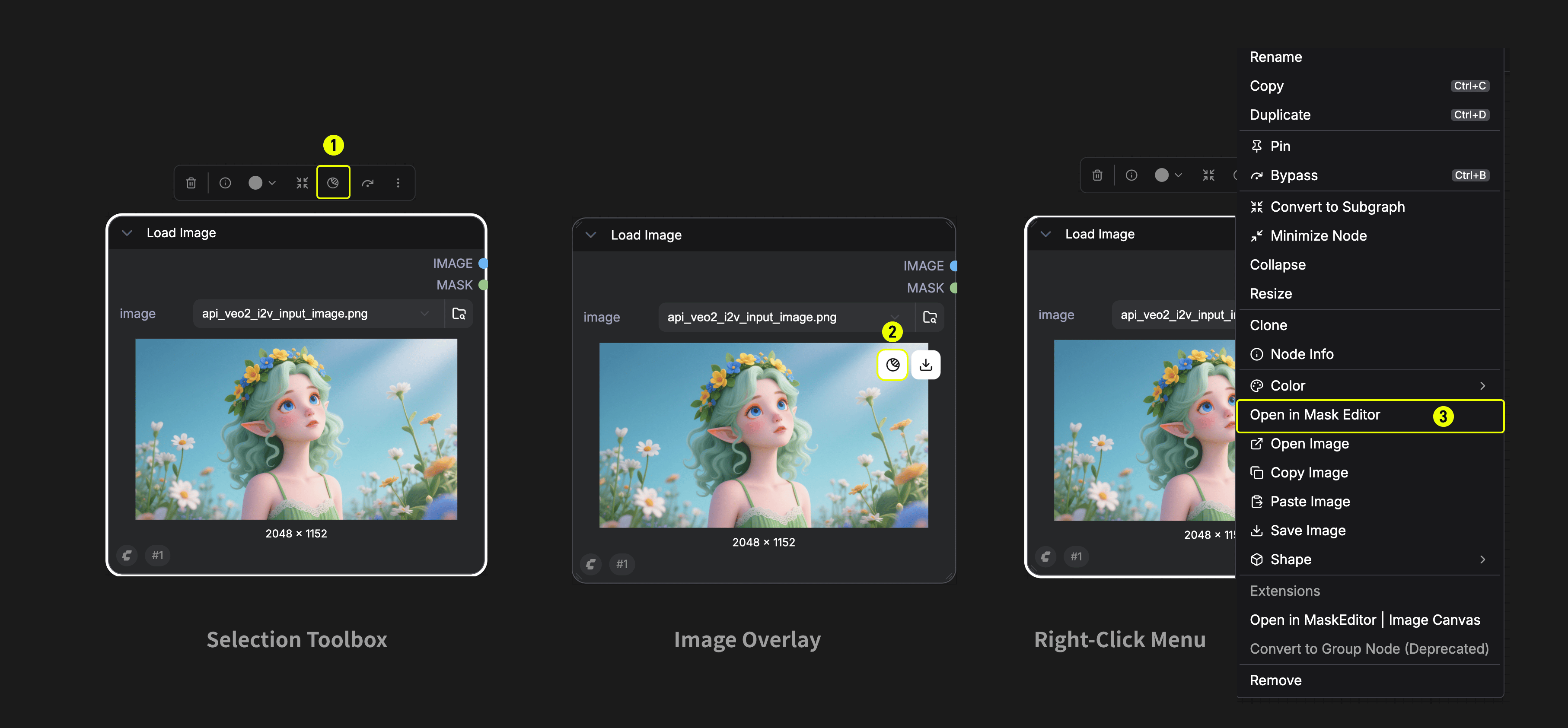
There are three ways to open the Mask Editor:- Selection Toolbox — Select a Load Image node, then click the Mask icon button in the selection toolbar above the node.
- Image Overlay — Hover over the image preview (gallery mode), then click the Edit or mask image button (mask icon) that appears in the top-left corner.
- Right-Click Menu — Right-click a Load Image node and select
Open in Mask Editorfrom the context menu.
The Mask Editor is available in both Graph Mode and App Mode.
Interface Overview
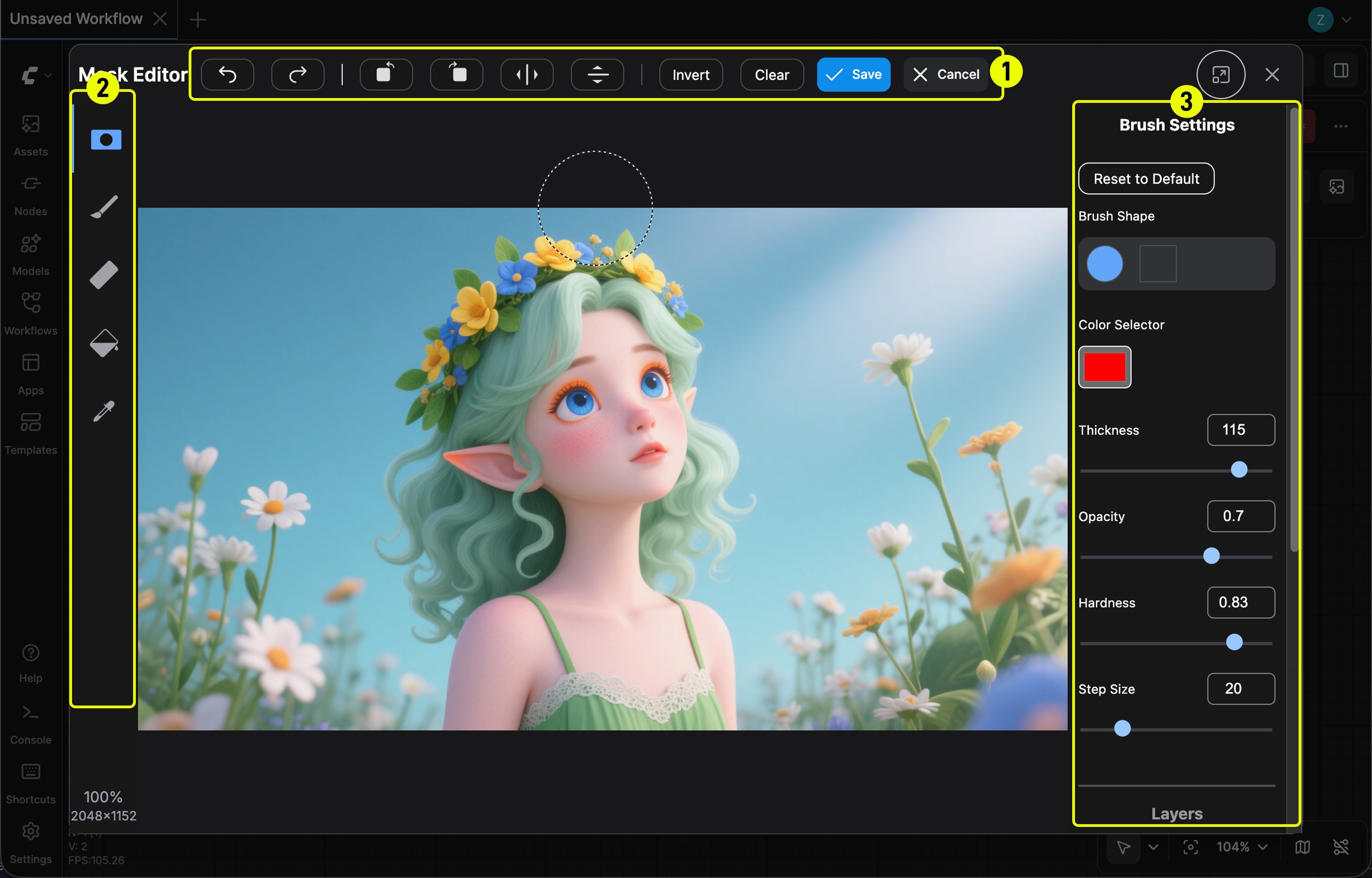
Tools
The tool panel on the left side offers five tools. Select a tool to activate it, and the right panel will show its settings.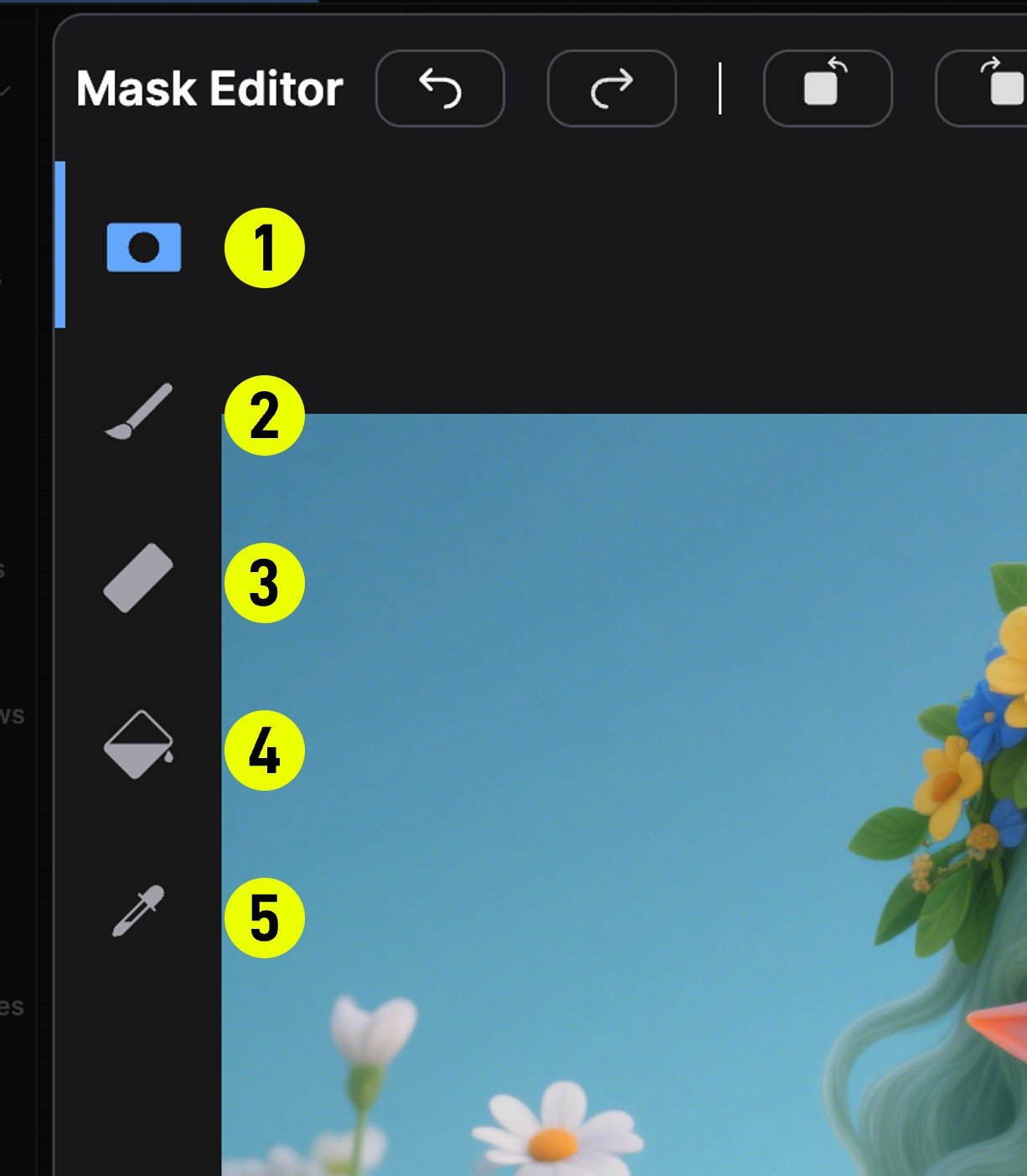
TopBar Actions
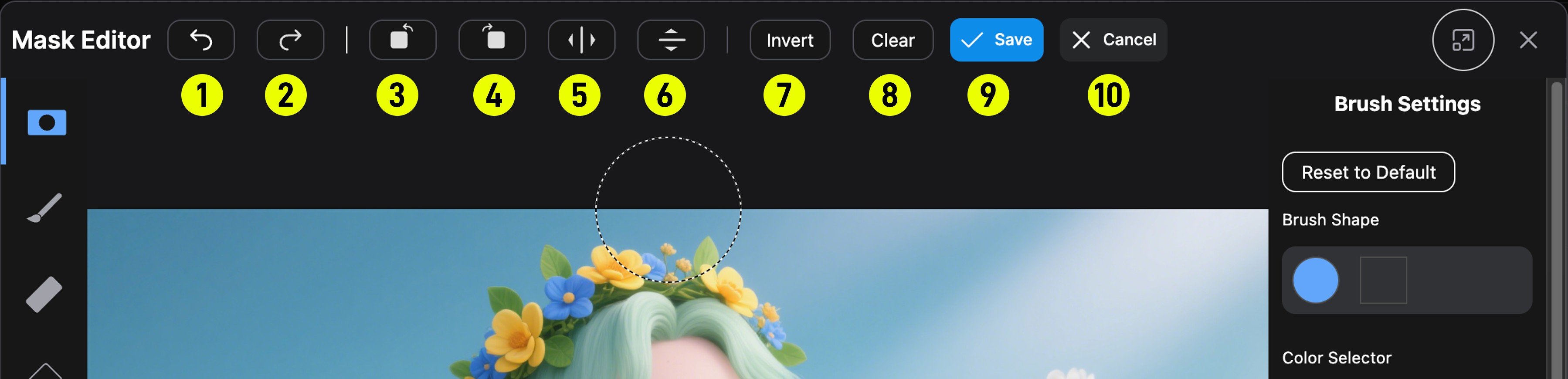
Note: Rotate and mirror operations affect all three layers (mask, paint, and base image) simultaneously. GPU-accelerated textures are recreated after transforms.
Layers
The right panel includes a Layers section where you can toggle visibility of each layer independently:- Mask Layer: The mask overlay. You can adjust its opacity and blending mode:
Black— Mask renders as black overlayWhite— Mask renders as white overlayNegative— Inverted mask rendering
- Paint Layer: The RGB paint layer (visible when using Paint Pen)
- Base Image Layer: The original source image
Brush Settings
When a brush-based tool (Mask Pen, Paint Pen, or Eraser) is active, the side panel shows brush settings:
Use Reset to Default to restore the default brush parameters.
Canvas Navigation & Shortcuts
Settings
In the ComfyUI Settings panel, you can configure the following Mask Editor options:Video Tutorial
Note: This video demonstrates an older version of the Mask Editor (Nodes 1.0 UI) showing brush size adjustment and mask preview creation. The overall workflow remains the same in the current version.